📵 You're offline 0 — Reports will sync when you reconnect
Notifications
No new notifications
Good morning, Contractor.
Loading...
0
Reports
0
Pending
0
Confirmed
Recent Reports
1
Setup
2
Photos
3
Notes
Project Details
123 Main St
Draft
Progress Walkthrough · Today
AI Summary
✏️ All fields editable
✏️ Edit directly — tap to modify
📎 Attached Reports
Attach a PDF or SiteBrief link from a sub-contractor, inspector, or appraiser.
Send to Client
How to send
Report Sent!
Your client has been notified. They can view and respond via their unique link.
Property
Client
Photos
Sent ViaText + Email
Status⏳ Sending...
Client Project Portal Link
Project Milestones
No milestones set. Tap Edit to add project milestones.
Report History
Walkthrough Report
Property Address
Progress Walkthrough Your Contractor
📸 Walkthrough Photos
📋 Report Summary
📍 Areas Reviewed
🔍 Key Observations
💬 Items Discussed
Next Steps
Your Response
Please review the above and confirm receipt, or leave feedback for your contractor.
✓ Response Submitted
Your contractor has been notified. Thank you!
Your Project
Loading your project...
Generating AI Summary...
Analyzing photos and notes
1
Reading your notes
2
Structuring report sections
3
Formatting for client
Industry

Select your industry or create a custom one. This updates report types and AI language to match your business.

+ Custom Industry

Don't see your trade? Build your own. The AI will automatically adjust to match.

🔨 🪚 🔧 🔩 🪛 🌳 🚛 🏠 🏢 🚐 🐾 🧹 🪟 🔌 💧 🌱 🎨 🛠️ 🏗️ ⭐
⭐ Client Ratings
Your Profile
Your logo
🎨
Tap to upload your logo
PNG, SVG, or JPG · Max 2MB
❓ How It Works

Step-by-step guide to every feature — walkthroughs, client feedback, sign-off flow, photo deletion, and archiving.

Data Management

Clear all saved reports and projects from this device. This cannot be undone.

SiteBrief v1.0 · Built with Claude

✍️ Sign & Confirm Report
Draw your signature below, then enter your full name. This will serve as your digital signature and legally confirms you have reviewed this report.
Draw your signature above
Cancel — I'll sign later
📋
How SiteBrief Works
Everything you need to know — from your first walkthrough to a fully signed-off, archived project.
1️⃣
Start a Walkthrough Report

Tap New Walkthrough Report on the dashboard. Enter the job address, select the report type, and choose your client contact (or add one on the spot).

📷 Add Photos
Tap the photo strip to take or upload photos from your device. Tap any photo to add a caption or annotate it with arrows and highlights.
🎤 Record Voice Notes
Tap the microphone to record your observations out loud while walking the site. SiteBrief transcribes your voice and the AI rewrites it into a professional report automatically.
✨ AI Summary
After recording, tap Generate Summary. The AI produces a structured report with Areas Reviewed, Key Observations, Items Discussed, and Next Steps — all in professional language matching your industry.
2️⃣
Send the Report to Your Client

Review the generated summary, edit any section if needed, then tap Send Report. Your client receives an SMS with a private link to their personal portal — no app download, no login required.

🔗 Private Client Portal
Each client gets a unique, secure link that shows all their project reports in one place. The link is tied to the project — not to an account — so it works instantly on any device.
3️⃣
Client Reviews Each Report

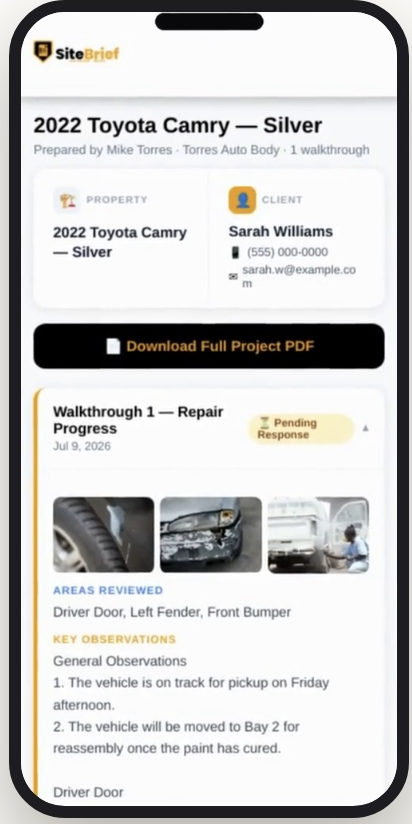
On their portal, the client sees every walkthrough report with photos, observations, and next steps. Below each report they have two options:

Accept & Close Report
The client is satisfied. The report is marked confirmed and removed from the pending list.
💬
Leave Feedback / Concerns
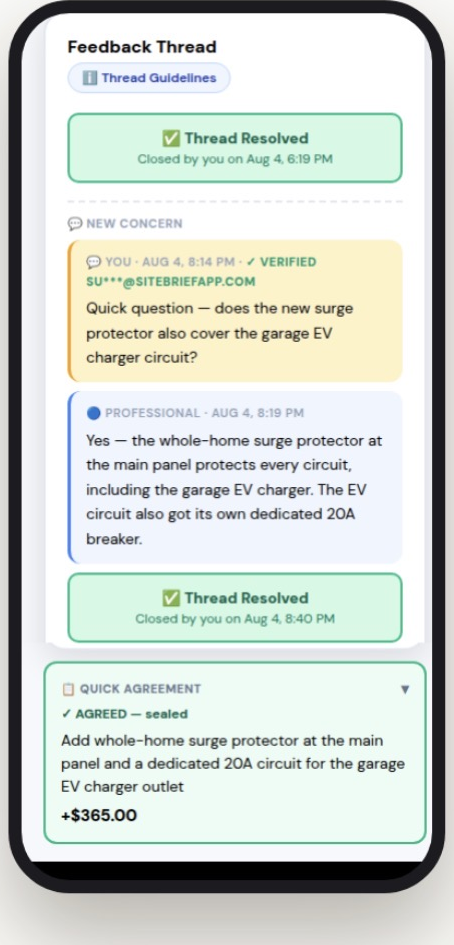
The client types a question or concern and sends it. You receive an SMS notification and can reply directly from your dashboard.
🔁 Live Thread Messaging
Feedback threads are a real-time back-and-forth between you and the client. The client can reply to your response, and you can reply again. Once both sides are satisfied, the client taps I Agree — Close This to resolve the thread.
🏷️
Report Statuses Explained
⏳ Pending Report sent, waiting for the client to accept or respond.
💬 Feedback Client has left a concern. Reply from your dashboard to resolve it.
✓ Confirmed Client accepted this report. No further action needed.
📂
Project Statuses Explained
🟡 Active
Work is in progress. Reports are being sent and reviewed.
⏳ Awaiting Sign-Off
You have marked the work complete. The client receives an SMS and their portal shows a sign-off form. All reports must be accepted before you can set this status.
✅ Completed
The client has signed the final sign-off form. The project is 100% done with a signature on file. You and the client can download the final PDF at any time.
📁 Archived
The project has been moved to the Archive folder — either manually by you, or automatically on day 14 after completion. All text records are kept permanently. You can unarchive at any time.
4️⃣
Final Client Sign-Off

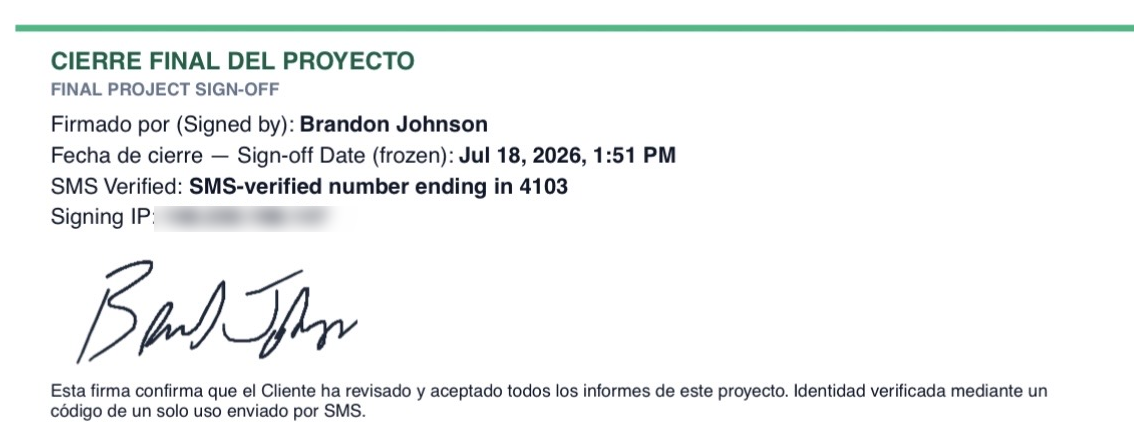
Once you mark a project Awaiting Sign-Off, the client’s portal shows a sign-off section at the bottom. The sign-off process includes identity verification to ensure the correct person is signing.

  1. Reviews all walkthrough reports one final time
  2. Taps Send Verification Code to receive a 6-digit SMS code
  3. Enters the code to verify their identity
  4. Enters their full name
  5. Draws their signature on the signature pad
  6. Taps Sign & Complete Project
📱 SMS Identity Verification
Before the signature form appears, the client must verify their identity via a one-time SMS code sent to the phone number on file. The verified phone number is embedded in the signature record and the final PDF, creating a legally defensible proof of identity that cannot be disputed.
🔔 You get notified
As soon as the client signs, you receive an SMS. The project status updates to ✅ Completed and the signature is stored permanently on the project record.
5️⃣
Photo Deletion & Auto-Archive

To manage storage, photos are automatically deleted 14 days after you mark a project Awaiting Sign-Off. Text records, summaries, observations, next steps, and all feedback threads are kept permanently — only the photos are removed.

📋
Day 0: Project marked Awaiting Sign-Off. Warning shown — export your PDF now.
⚠️
Day 7: Reminder banner — photos delete in 7 days.
🚨
Day 13: Final warning — photos delete in 24 hours.
🗑️
Day 14: Photos deleted. Project automatically moved to the Archive folder. Status badge preserved.
⬇️ Export your PDF before day 14
The full project PDF includes all photos, report summaries, and the client’s signature. Download it from the project detail screen or from the client portal at any time while photos are still present.
📁
The Archive Folder

The Archive is your permanent record of all finished work. Access it from the Projects screen by tapping Archived. Every archived project shows its original status badge so you can see at a glance whether it was completed with a sign-off or just manually filed away.

↩️ Unarchive anytime
Tap any archived project and use the status picker to restore it to Active if you need to reference or reopen it.
📄
Exporting a PDF

A full project PDF can be generated at any time from the project detail screen. It includes your branding, all report summaries, photos, client feedback threads, and the final signature if the project has been signed off.

📱 Client can also download
The client portal has a Download Final PDF button that appears after they sign off. It gives them a permanent copy of the completed project record.
⚙️
Settings & Profile
Industry
Select your industry to customise report types and AI language. Options include Plumbing, Electrical, HVAC, Roofing, Landscaping, Pest Control, and more. You can also create a fully custom industry.
Contractor Profile
Your name, company, phone number, and logo appear on every report and PDF you send. Set this up in Settings so clients always know who the report is from.
Sync & Backup
Your data is stored on this device and synced to the cloud automatically. Tap the 🔄 sync button in the top bar to force a manual sync at any time.
⚡ Quick Tips
Always export your PDF before the 14-day photo deletion window closes.
You cannot mark a project Awaiting Sign-Off until all reports are accepted by the client.
The client portal auto-refreshes every 15 seconds — clients see your replies without reloading.
Annotate photos with arrows and highlights before sending to draw the client’s attention to specific areas.
Set your Contractor Profile in Settings so your name and logo appear on every report and PDF.
Archived projects keep all text records permanently. You can unarchive and restore them at any time.